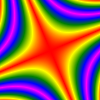
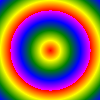
In computer graphics, a color gradient (sometimes called a color ramp or color progression) specifies a range of position-dependent colors, usually used to fill a region. The colors produced by a gradient vary continuously with position, producing smooth color transitions.
With version 2.0 of the Graphics32 library, color gradients are now possible in many different ways. There are hardly any limitations in the number of color stops or number of interpolation steps. Also for all gradients different wrap modes have been implemented (where possible). Furthermore several useful geometric distortions have been implemented such as linear, radial, conical, diamond, X, XY, and Squared(XY). Finally some sparse point color interpolators have been implemented that can be used for simple mesh gradients.
Simple 2-Point Linear Gradients
Classic color gradients only use 2 colors with a linear transition from one color to the other color, as can be seen in Figure 1.

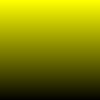

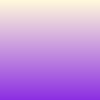
The code, which is necessary to build the above gradients is very simple; A linear gradient sampler is created and the values for each pixels are calculated:
var
  X, Y: Integer;
  Sampler: TLinearGradientSampler;
begin
  Bitmap.SetSize(100, 100);

  Sampler := TLinearGradientSampler.Create;
  try

    Sampler.SimpleGradient(FloatPoint(0, 0), clBlue32, FloatPoint(0, 100), clRed32);

    Sampler.PrepareSampling;

    for Y := 0 to Bitmap.Width - 1 do
      for X := 0 to Bitmap.Height - 1 do
        Bitmap.Pixel[X, Y] := Sampler.GetSampleInt(X, Y);

  finally
    Sampler.Free;
  end;
end;
Simple 2-Point Radial Gradients
Another classical color gradient supported by Graphics32 is the circular gradient. A circular gradient is specified as a circle that has one color and a focus (the center of the circle) that has another. Colors are calculated by linear interpolation based on distance from the focus. The distance from the focus is mapped using a radius property.
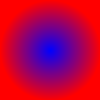


The code, which is necessary to build the above gradients is also very simple; A radial gradient sampler is created and the values for each pixels are calculated:
var
  X, Y: Integer;
  Sampler: TRadialGradientSampler;
begin
  Bitmap.SetSize(100, 100);

  Sampler := TRadialGradientSampler.Create;
  try

    Sampler.Center := FloatPoint(Bitmap.Width div 2, Bitmap.Height div 2);
    Sampler.Radius := Bitmap.Width div 2;
    Sampler.Gradient.StartColor := clBlue32;
    Sampler.Gradient.EndColor := clRed32;

    Sampler.PrepareSampling;

    for Y := 0 to Bitmap.Width - 1 do
      for X := 0 to Bitmap.Height - 1 do
        Bitmap.Pixel[X, Y] := Sampler.GetSampleInt(X, Y);

  finally
    Sampler.Free;
  end;
end;
Wrap Modes
As can be seen in Figure 2, the color outside the defined radius is clamped. While this might be desired and sufficient for typical cases, it is also possible to use other wrap modes. Figure 3 shows the differences between all the different wrap modes available:
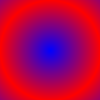

Please note, that the repeat wrap mode may cause rough and pixelized edges rather than smooth transitions, when the color starts to repeat. This can be corrected either by super sampling the gradient sampler (if a sampler is used as opposed to a polygon filler) or by adding further color stops.
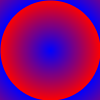

On the left: supersampled. On the right: corrected using a 3-point gradient.
More than 2 colors
So far, the presented figures only featured 2 colors, but as it has already been mentioned with Graphics32 there are hardly any limitations in the number of color stops. Further color stops can simply be added at any time using the AddColorStop() method. Or the gradient can be defined directly using the SetColors() method. Both are members of the TColor32Gradient class, which is responsible for managing the color stops.